

This is a guide to get you, engineering user, up and running with custom DOORS Next Generation widgets as fast as possible! Do things in IBM DOORS Next that you never thought possible!
Extend IBM DOORS Next with Custom Widgets
You can think of our custom widgets as the features and shortcuts IBM should have built into DOORS Next—but didn’t. And with some grit and determination, you too can develop your own similar widgets!
Widget can fill in those gaps, shaving hours off your review and workflow cycles, automating repetitive tasks, and letting you focus on the actual engineering instead of the tedium of maintaining data within a tool.
Wondering how to kick off your own widget development journey? We’ll walk you through each phase—from environment setup to deployment—so you can start delivering value right away.
Getting Started – Security first
IBM’s tightened security protections will block any widgets or RSS feeds that pull from external URLs—leading to errors like:
“The OpenSocial gadget was not loaded (CRJAZ5037E)”
Follow these quick steps to get your custom widgets to even work to begin with:
- Add Your Hosts to the JTS Allowlist
- In Jazz Team Server, go to Admin ? Advanced Properties.
- Search for
externalResources.allowlist. - Enter each base URL where you host your widget extensions, separated by commas (no spaces).
- (Tip: during testing, use
*to allow all external calls. Do not do this in production.)
- Whitelist URLs in Your DOORS Next (or Other RM) App
- Navigate to
https://<your-domain>/rm/admin. - Under Communication ? Whitelist, add the same URLs one at a time.
- Navigate to
- Wait for Changes to Propagate
- It can take up to 10 minutes for your updates to kick in.
Once that’s done, your custom widgets will start loading again—no more widget errors. You can even enable SSO token passing if need be (and if you don’t know what that is, don’t worry about it).
More comprehensive setup detail can be found here. We’re just trying to get you started faster.
Configure Liberty Server
Step 1. Enable drop-ins monitoring
By default in a standard CLM/ELM Liberty profile, the <applicationMonitor> element has dropinsEnabled="false". You must turn it on so Liberty will auto-deploy anything you drop into dropins:
<server>
  …
  <applicationMonitor dropinsEnabled="true" .../>
  …
</server>
This tells Liberty to watch the dropins/ folder for new WARs (or WAR-directory projects) and deploy them automatically. Of course you will have to stop and start Liberty again before this change is enabled.
Step 2. Deploy your widget assets via drop-ins
- Under your server directory (e.g.
/liberty/servers/clm/dropins/), create a folder named exactly:dng_extensions.war - Inside
dng_extensions.war/, drop all of your widget files (pure.js, HTML, CSS, images, etc.). - Save and wait—Liberty will detect that directory and deploy it at:
https://<your-host>:<your-port>/dng_extensions/(you can verify by browsing to one of your static files).
That’s it. With dropinsEnabled = true, Liberty will pick up dng_extensions.war automatically.
If you’re struggling here, it may be because you’re doing this in production, and we already told you not to. In this case it’s very likely that you have a reverse proxy in front of things. You may need to either self host for a test environment or work with your admins to get server names, configure a reverse proxy, and other access that you might need.
Grab IBM’s Catalog of Widgets
The fastest way to get started is register for a Jazz.net account if you haven’t already, and download IBM’s sample widget files. It includes some examples and most importantly, the custom catalog.
Just download this zip file, unzip, and then upload to the dng_extensions.war on your Liberty server.
Once the zip file is uploaded and extracted, just go to /rm/admin and choose Advanced Properties, and fill in the URL to the WidgetCatalog.xml file you just uploaded under the User Extension Catalog URL (com.ibm.rdm.widgetcatalog.internal.WidgetCatalog) property.
Now all you need to do is either wait a few minutes or bounce the server, and when you pull up your mini dashboard you should be able to add custom widgets:
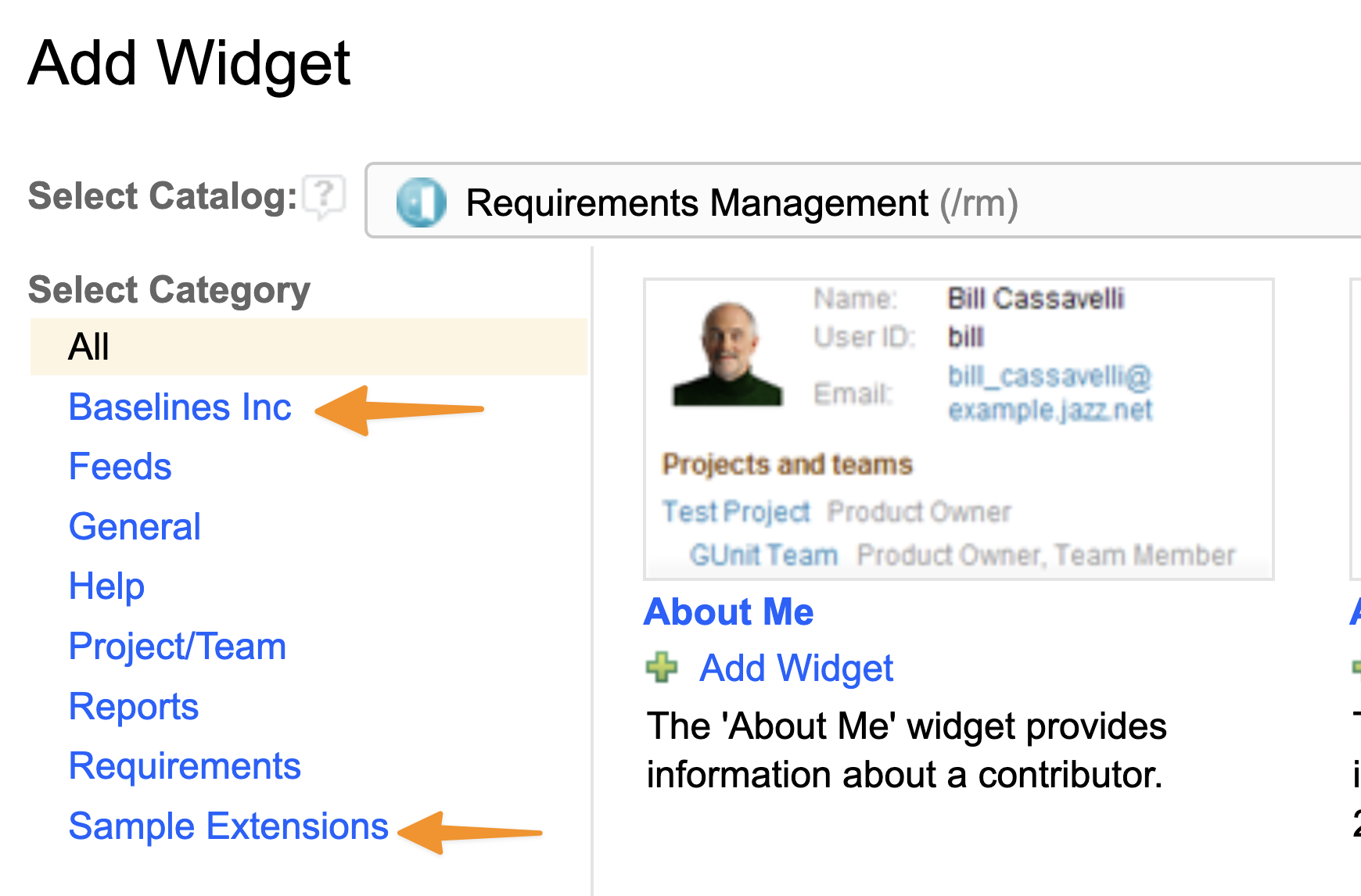
You are well on your way!
Softacus Widgets – Supercharge DOORS Next with the solutions IBM should have built but didn’t!
Forget the limited IBM freebies and skip the hassle of building your own customizations. Softacus Widgets seamlessly extend native DNG functionality, automate repetitive tasks, boost usability, and maximize your productivity.
Please do not hesitate to contact us for more details on our extensive Widget Catalog.